UpWake
Wakes up even heavy sleepers
iOS — on the App Store
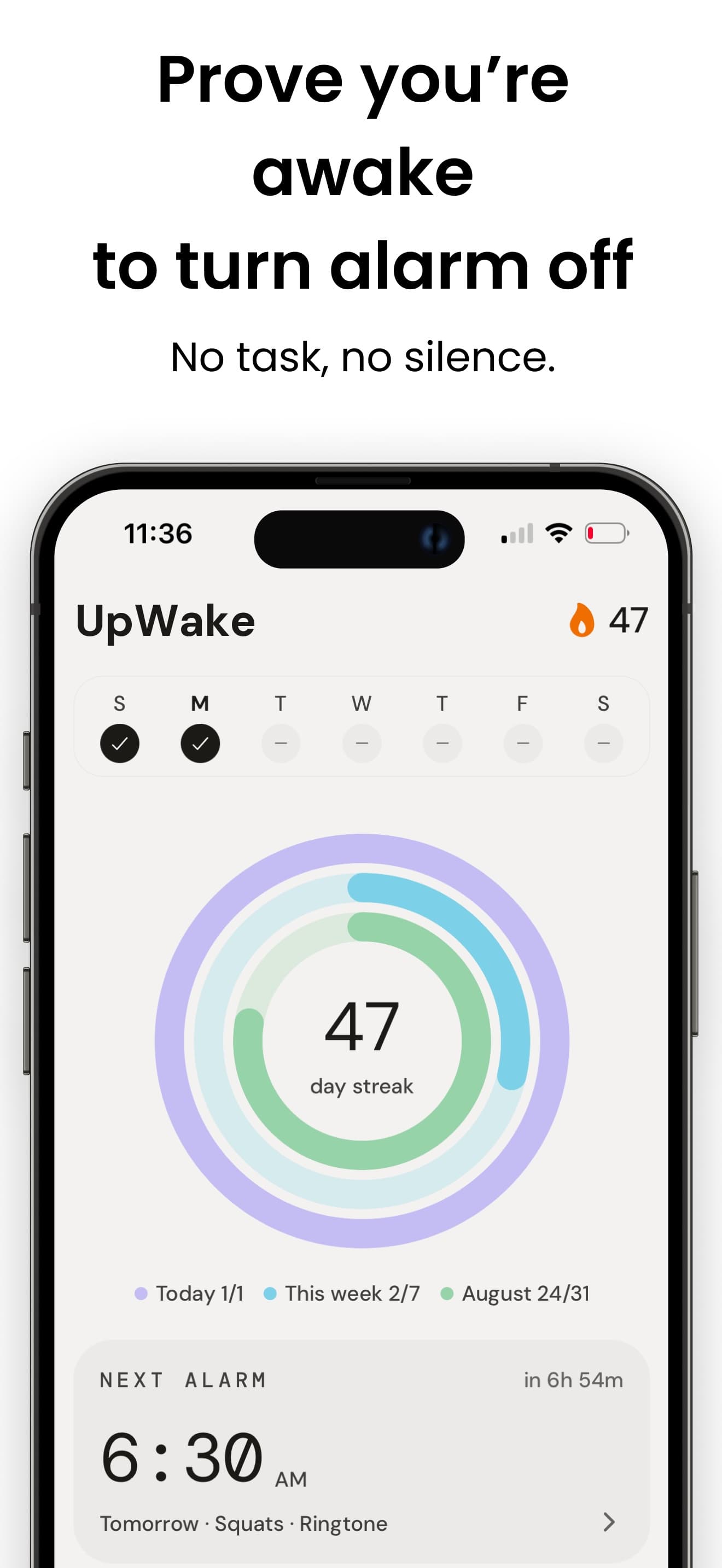
UpWake is for people who've already tried five alarms and a phone across the room, and still slept through every one of them.
Rings even when everything else fails
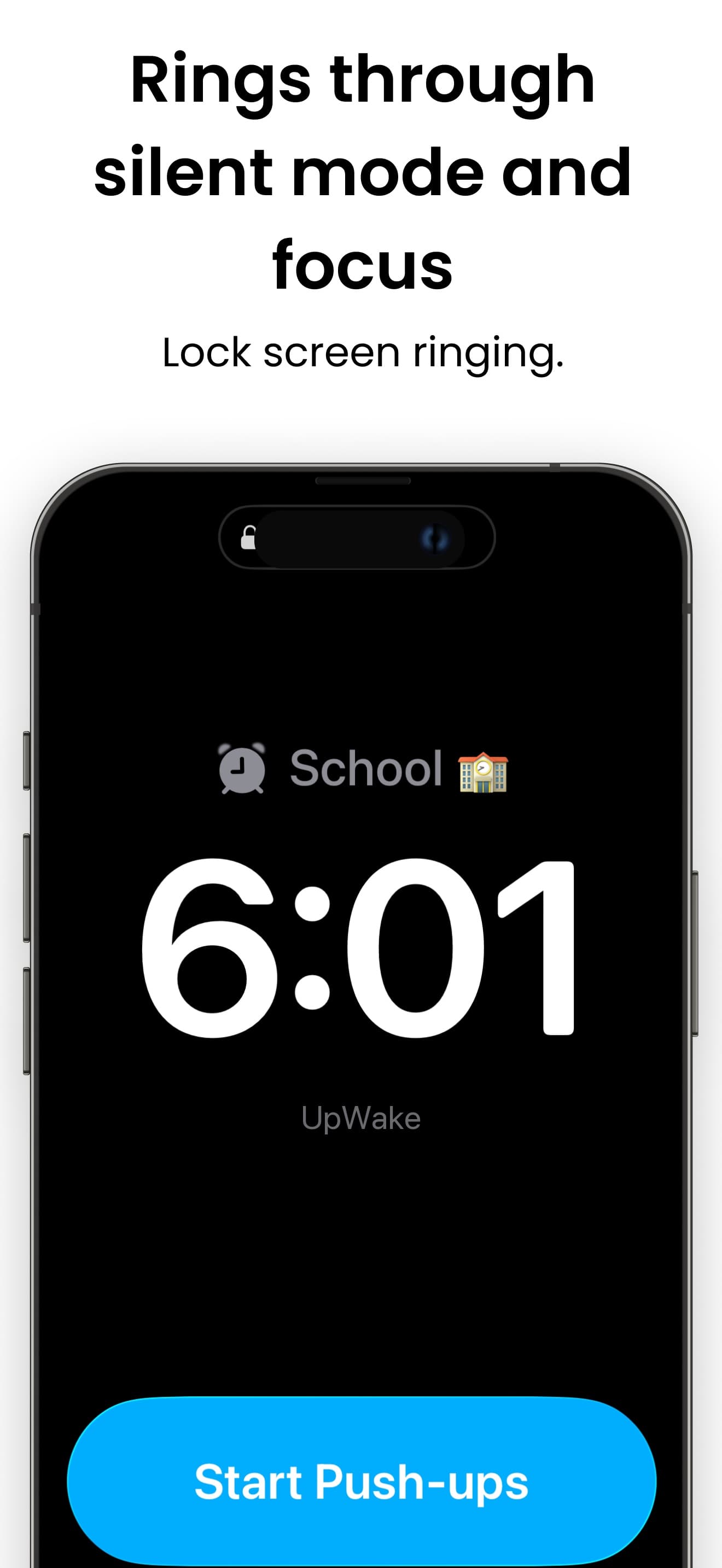
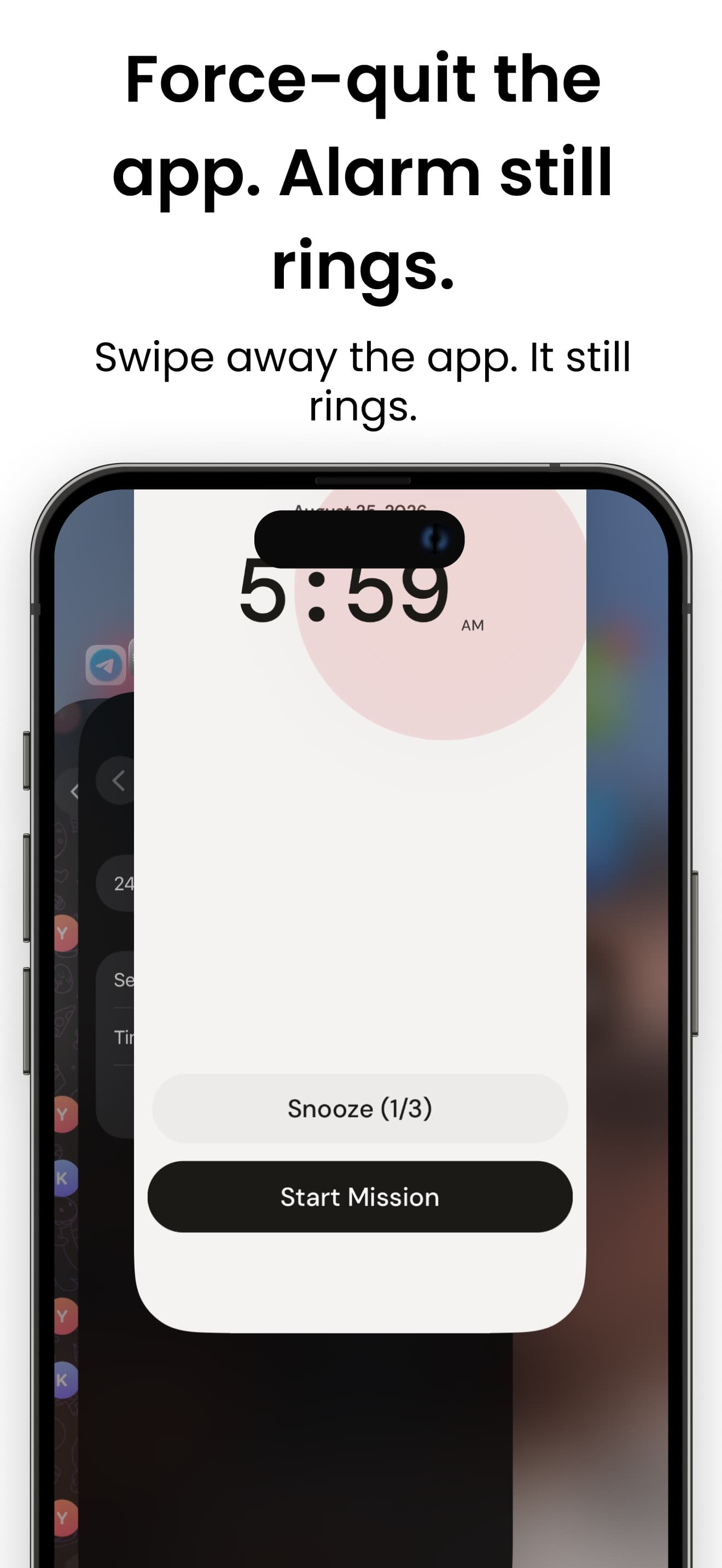
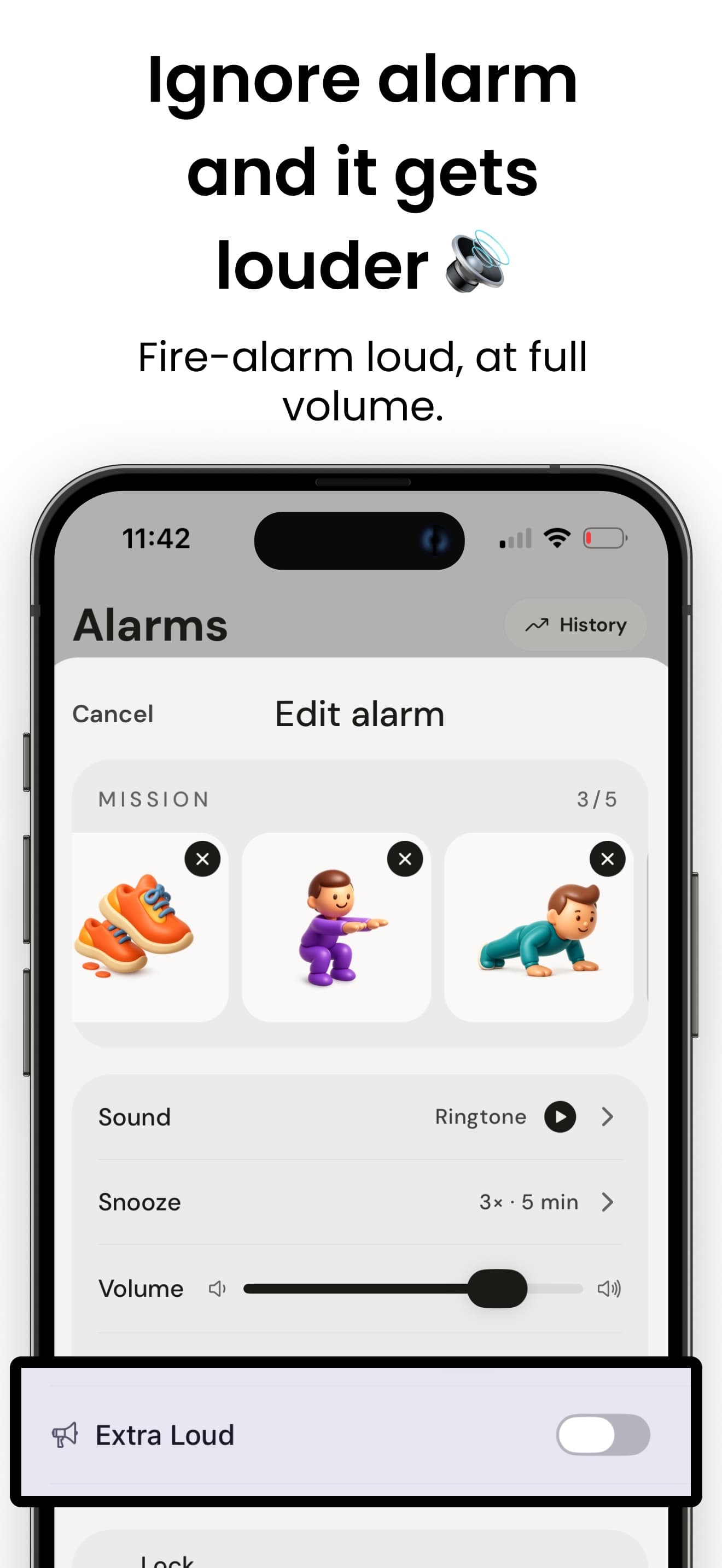
Built on Apple's own AlarmKit, so it rings at full volume in Silent Mode, through a Focus, and even if you force quit the app the night before. A lot of smart alarm apps quietly can't promise that.
Missions you can't sleep through
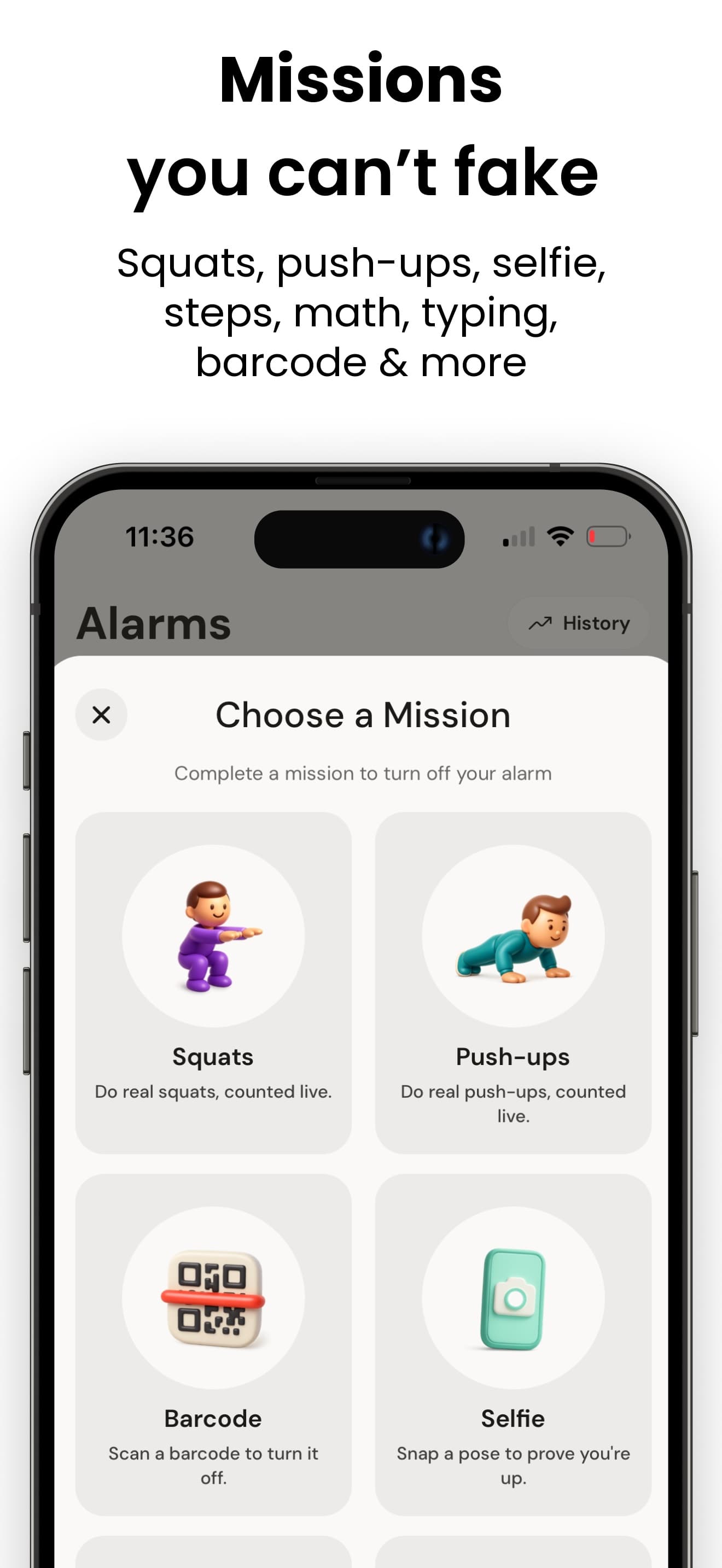
Attach a mission and the alarm stays on until it's actually done. Twelve kinds, as gentle or as brutal as you need. Scan a QR code hidden somewhere you have to get up for: the bathroom mirror, the kitchen counter. Hold a pose for the camera and let a quick AI check confirm you're really awake. Solve timed math, all the way up to a Hell mode you will not beat half asleep. Type out a phrase, find the odd emoji in a grid, or walk a set number of steps. Or get the body moving: squats, push-ups, boxing punches, knee raises, a dance, or reaching for a target on screen, each one counted live by the camera before the alarm lets go.
Built for heavy sleepers
One sound never works twice for some people. If you always find a way back into bed before you're even conscious of doing it, a mission closes that loop. The alarm ends when the mission is done, not when you feel like it's done.
A sound for every morning
Forty-one sounds are already loaded in, from a soft chime to an air-raid siren. Pick something calm on an easy day and something rough on the days you know you'll need it.
Pro, with a free trial
UpWake Pro is required to use the app. Start with a free trial on the yearly plan, or choose a monthly plan or a one-time lifetime purchase. No account, no login, no ads.